Assigning Primary Materials to Products
Tag your products with materials from a standardized, searchable list.
Written By El
Last updated 10 days ago
Primary Material is a Default attribute that lets you tag your products with the materials they're made from. Materials are picked from a standardized, searchable list organized by category, so your product data stays consistent and is ready to publish to CADdetails.
Roles: Editors and Admins can assign and edit materials. Viewer roles have read-only access.
Before You Start: Add Primary Material to a Product Family
Open a Product Family and select the Attributes tab.
Select Assign Attribute.
Find Primary Material (it's marked with a Default tag) and assign it.
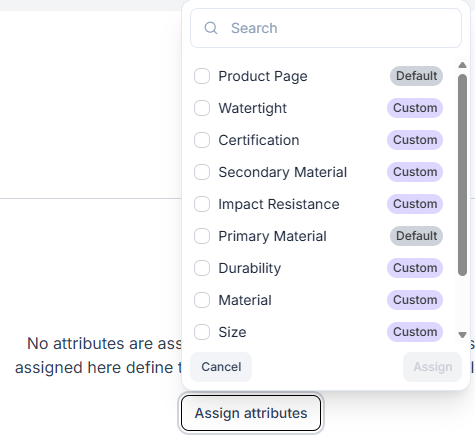
Once it's assigned, every product in the family has a Primary Material field.
Assigning Materials on the Product Form
Open a product and go to its Attributes tab. An empty Primary Material field shows --.
Select Edit, then select the Select materials field to open the Assign Materials modal.
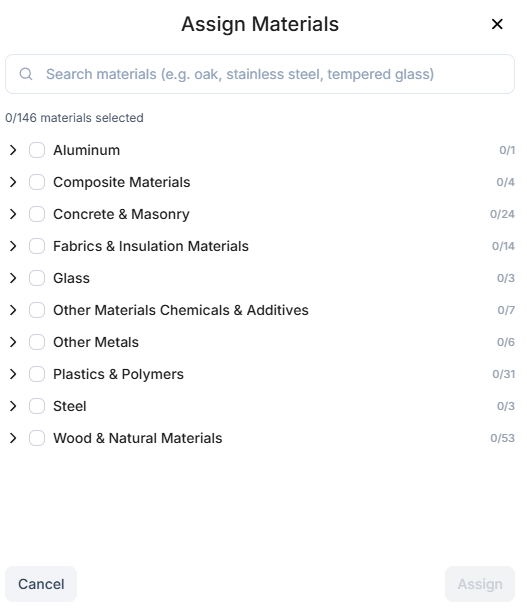
Expand a category to see its materials. Categories start collapsed, and the counter shows how many materials you've selected (for example, 0/37 materials selected).
Tick the materials you want. Ticking a category selects every material in it.
Select Assign. Your materials appear as chips in the field.
Select Save.
Good to know:
When you tick a whole category, the individual materials (not the category) are saved and shown as chips.
Assign stays disabled until you change your selection. Selecting Cancel or closing the modal leaves the field unchanged.
To remove a material, select the X on its chip, then save.
If you leave the form with unsaved material changes, Prodify asks you to confirm before discarding them.
Clearing all materials and saving returns the field to --.
Searching for Materials
Use the search bar in the Assign Materials modal to find materials quickly. Search matches material names, descriptions, category names, and synonyms, so you can find a material even if you don't know its category.
Matching categories open automatically and show only the matching materials, with a count of how many you've selected in that category (for example, 3/12).
The counter shows the number of matches and your total selection (for example, 1 match, 3/37 materials selected).
Ticking a category while searching selects only the matching materials in it. Tick it again to untick just those.
If nothing matches, you'll see a no-results message. Your existing selections are kept.
Clear the search to return to the full list. Anything you picked while searching stays selected.
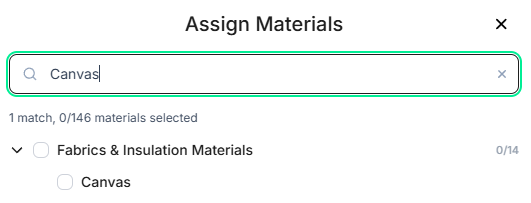
Search works the same way everywhere you assign materials: the product form, the Products table, and batch editing.
Editing Materials in the Products Table
In view mode, the Primary Material column shows each product's materials as chips. Hover over any chip to see the material's category path.
Select Edit above the Products table.
Select an empty Primary Material cell once to see Select…, then select it again to open the Assign Materials modal.
Choose your materials and select Assign.
Select Save.
To clear a product's materials, untick everything in the modal, select Assign, then select Save.
Updating Materials for Multiple Products
On the Products tab, select the products you want to update.
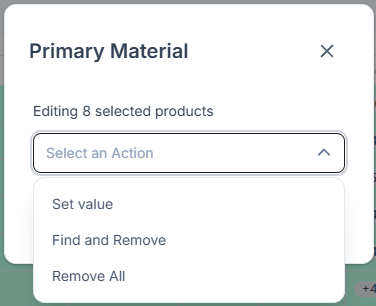
Select Edit Fields › Attributes › Primary Material. The editor confirms how many products you're editing (for example, Editing 2 selected products).
Choose an action:
Set value: gives every selected product exactly the materials you choose, replacing any existing ones.
Find and Remove: lists only the materials already on the selected products. Tick the ones to remove.
Remove All: clears materials from every selected product.
Apply your changes.
Filtering and Sorting by Material
Filter: Open the filter on the Products tab and choose one or more materials to show products that have at least one of them. Choose Is empty to find products with no materials yet. Your selected materials appear as chips on the active filter.
Sort: Select the Primary Material column header to sort alphabetically. Select it again to reverse the order.
Filtering and sorting by material also work in the Share view.
Things to Know
Primary Material is a Default attribute provided by Prodify.
Materials are included when your product data is published to CADdetails.
Related Articles
Was this helpful?
Still need help? Ask the team