Creating Custom Fields in PIM
How to add custom fields to your Product Tables
Written By El
Last updated 10 days ago
Prodify has replaced Custom Fields with Attributes for product families and products. If you previously used Custom Fields, these were automatically migrated to Attributes — no data was lost in the migration.
Roles: Editors and Admins can assign and manage Attributes. Viewer roles have read-only access.
Automatic Migration
When this update was applied, a migration script converted your existing Custom Fields into Attributes automatically, preserving field names, values, and assignments. You do not need to re-enter any data.
Default and Custom Attributes
Prodify has two kinds of attributes:
Default attributes are provided by Prodify for every company, such as Primary Material. They show a Default tag in the Assign Attribute picker.
Custom attributes are attributes your company creates to capture any other product information.
Creating a Custom Attribute
Go to your PIM Settings.
Select the option to create a new attribute to open the Create Custom Attribute dialog.
Enter a name and choose an attribute type, such as text, number, decimal, date, boolean, link, measurement, or single/multi select.
Save the attribute. You can now assign it to Product Families.
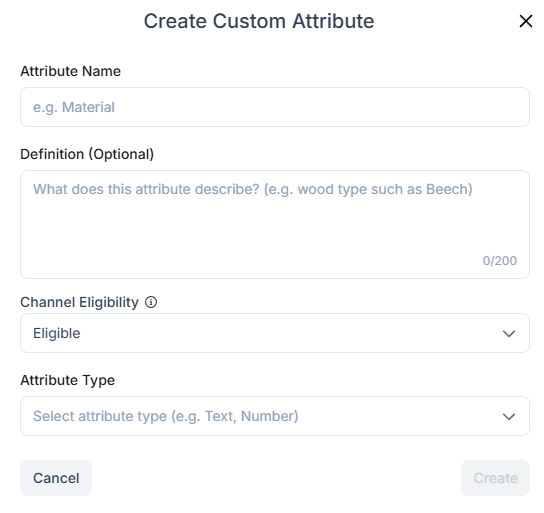
Note: Tiered Choice attribute types are reserved for Default attributes like Primary Material, so they aren't offered in the Create Custom Attribute dialog.
Assigning an Attribute to a Product Family
Open a Product Family and go to the Attributes tab. Select Assign Attribute to open the Assign Attribute picker.
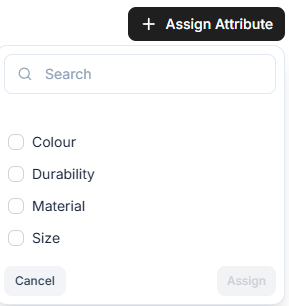
Search for the attribute you want to add and select it. It will appear in the assigned-attributes table on the Product Family form.
Editing an Attribute
Navigate to your PIM Settings.
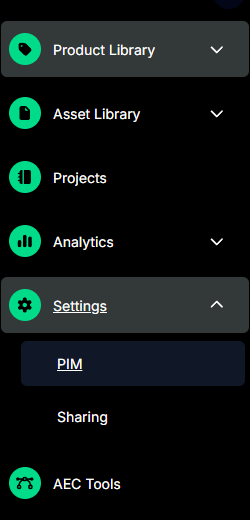
Open an attribute's Form view from the edit icon next to it in the assigned-attributes table, or by navigating directly to its URL. The Form view includes:
Breadcrumbs showing your path back to the product family or attribute list
A Settings section with the attribute's name, type, and configuration
The attribute type, which is locked once the attribute is created and cannot be changed
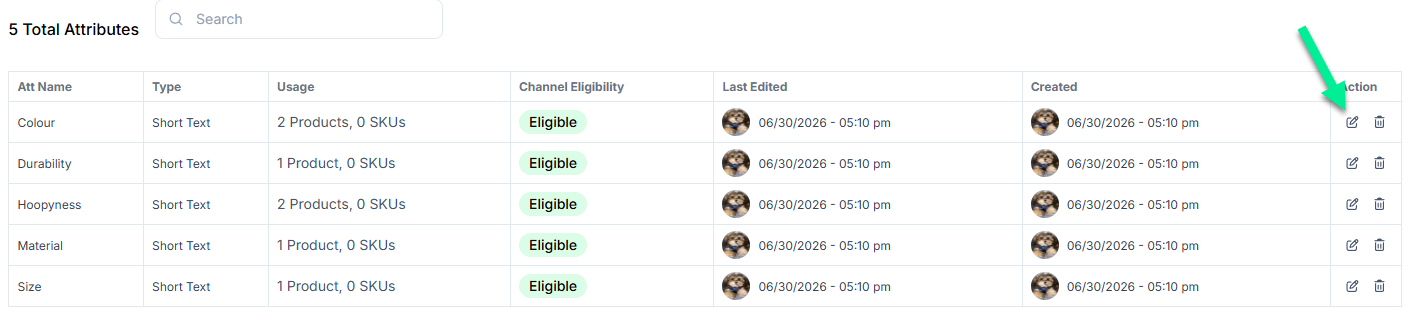
Required fields are validated on save — if a required setting is missing, Prodify prompts you to complete it before saving.
Removing Options or Changing Measurement Types
If you remove an option that is currently in use or change the measurement type of an attribute that already has values assigned, Prodify shows a warning modal. Confirming updates all product families and products using that attribute.
Please note the Prodify DAM and PIM have separate, unlinked custom field systems. Read more about Creating Custom Fields for your Assets here Creating Custom Fields for your Assets - Prodify
Was this helpful?
Still need help? Ask the team