Linking Assets to Product Families
Written By El
Last updated 3 months ago
Linking Assets in the Product Family Form
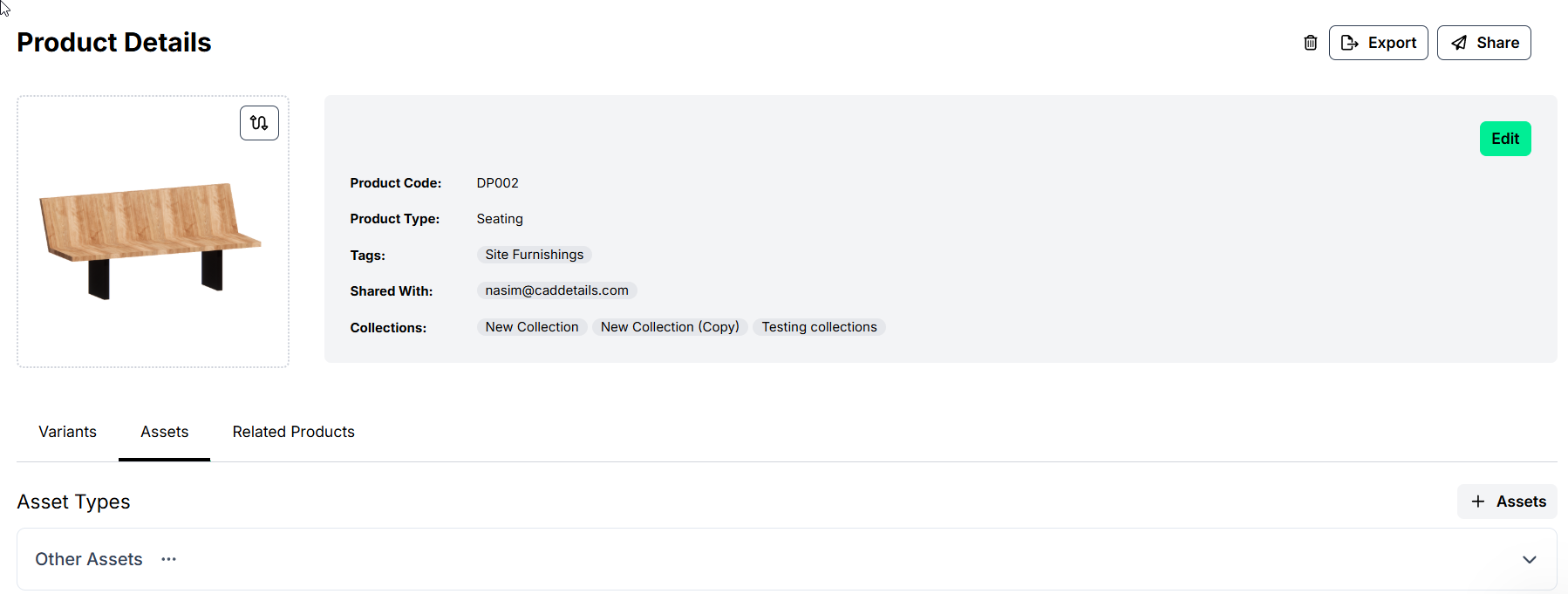
You can link assets to Product Families from the Product Family Form. Navigate to this option through the Assets tab found under the product family image. Once selected, you can choose to add assets by selecting + Assets at the right.
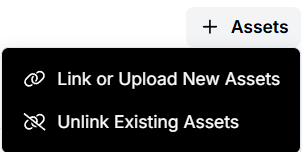
This provides the option to upload assets, link assets, or unlink already linked assets.
Linking Assets in the Product Family Table
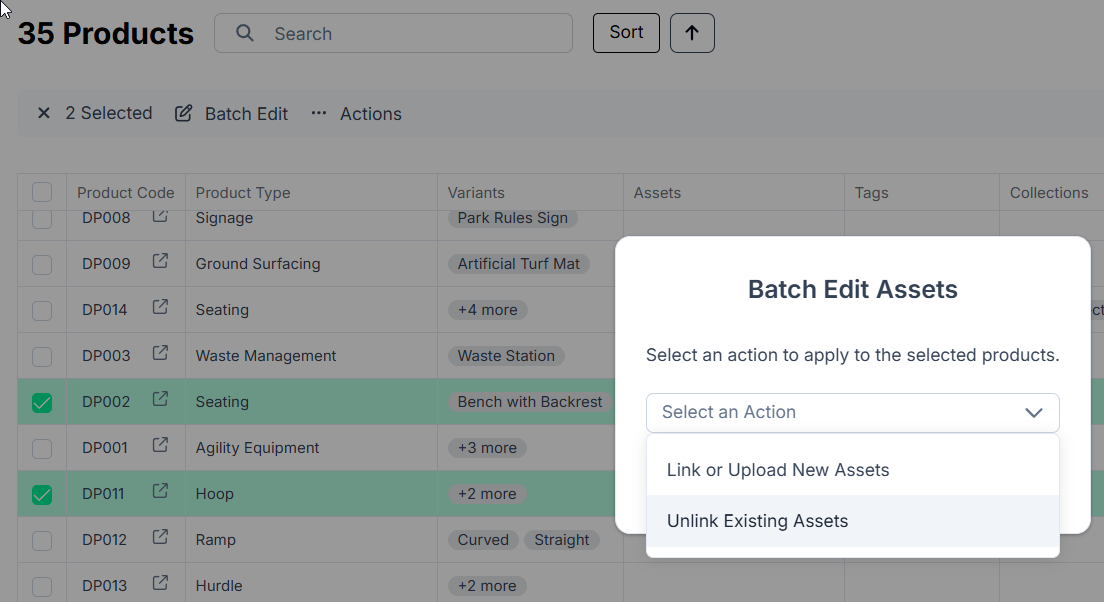
You can also link, unlink, or upload assets to Product Families in the Product Family table. Select the Product Families, then navigate to Batch Edit above the table and choose Assets.
Linking Assets to Product Families from the Asset Table by Drag and Drop

To link an asset:
In the Asset Table, locate the asset you want to link.
Click and hold the six-dot handle in the first column of the row.
Drag the asset and drop it onto the desired Product Family.
Once completed, you will see a confirmation message indicating the asset has been successfully linked.
To verify the asset is linked:
Open the Product Family and navigate to the Assets tab.
Or, check the Product Families and Products fields within the Asset Table.
Assets Tab
The Assets tab on the Product Family form lets you manage both file assets and embedded video links associated with your product.
Switching Views
Use the toggle icons at the top right of the Assets tab to switch between Tile View and Table View.
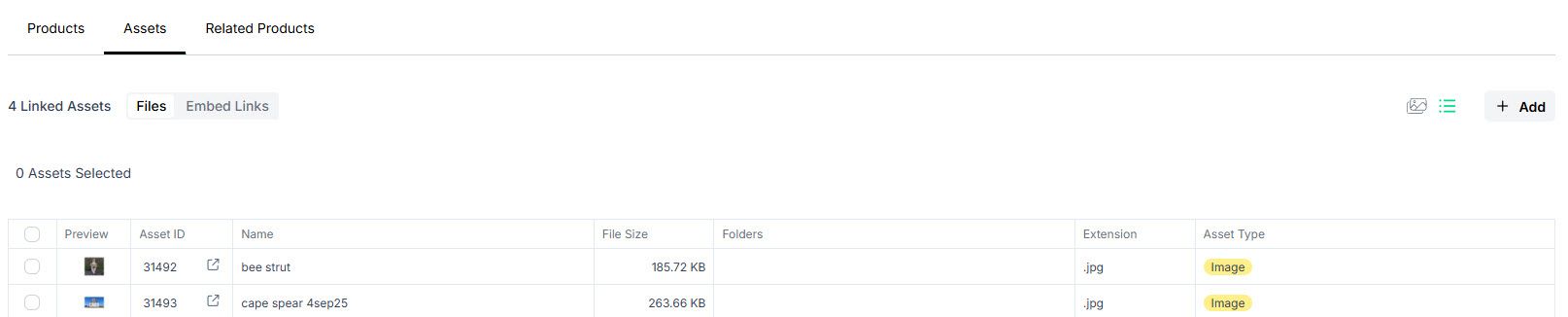
In Table View, use the switch to toggle between File Assets and Embed Links.
Adding Assets
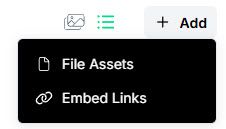
Click Add to open the add menu, then choose:
File Assets — upload or select file assets from the library.
Embed Link — opens the embed link tile drawer.
Adding an Embed Link
Click Add → Embed Link.
The embed link tile drawer opens, showing thumbnails of all available links from your Embed Link Library.
Click a tile to preview the embed in a modal, or select it to link it to this Product Family.
The linked embed link appears in both Tile View and Table View.
Note: Viewer roles cannot see unlink, apply, or batch action controls.
Editing Asset Type
In Table View, select one or more assets and choose Edit Asset Type from the selection toolbar to change the asset type.
For more information on managing embed links, see the Embed Link Library article.