Projects in Prodify
Projects in Prodify let building product manufacturers create, manage, and share branded project showcase pages.
Written By El
Last updated 3 months ago
Each project can include a media gallery with up to 25 images and embedded videos, linked product types, and rich metadata (project description, location, architecture/contractor firm, sector/subsector, project size, and photo credits).
Projects can be shared externally via a clean, branded preview page, and recipients can download gallery images as a ZIP. Projects can also be searched, favorited, and trashed/restored within Prodify.
Adding Projects in Prodify
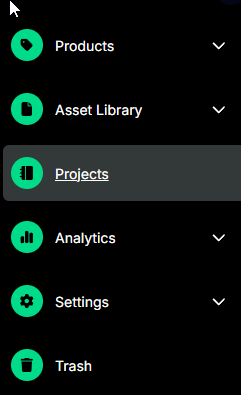
Access Projects in the sidebar menu.
Select "Create a Project" in the top right to get started in the Project Builder.

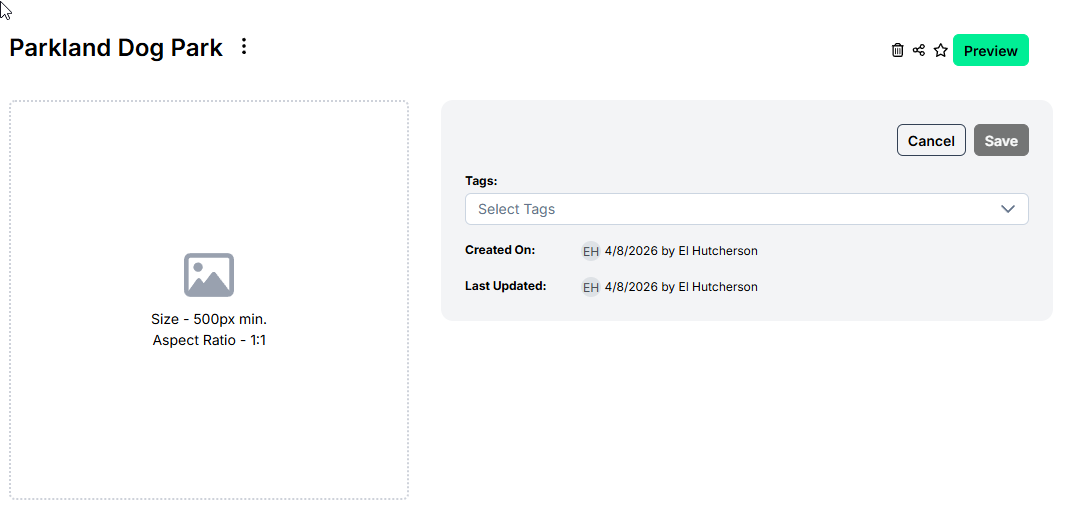
Select your new Project. At the top of the page, you are able to edit or add your Project Name, your project cover image, and tags, and share.
Adding Your Project Details
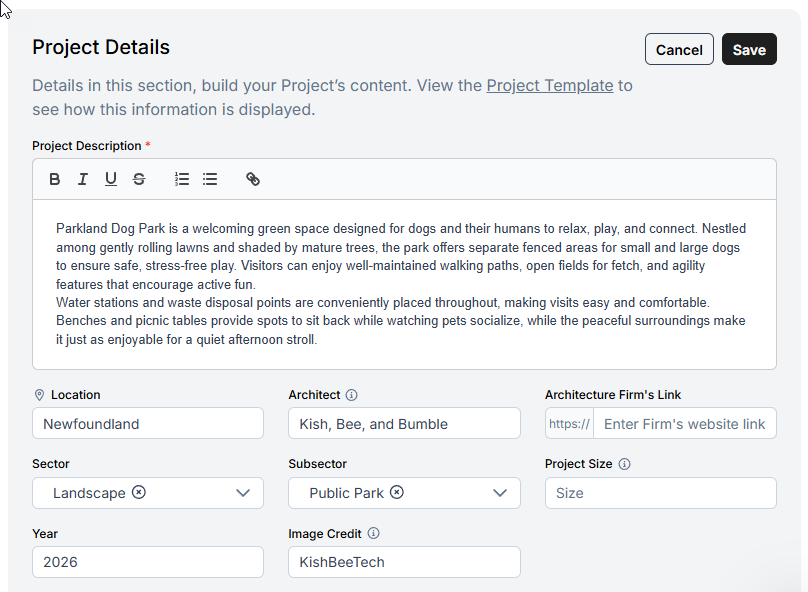
Select Edit to add your fields and here you can indicate:
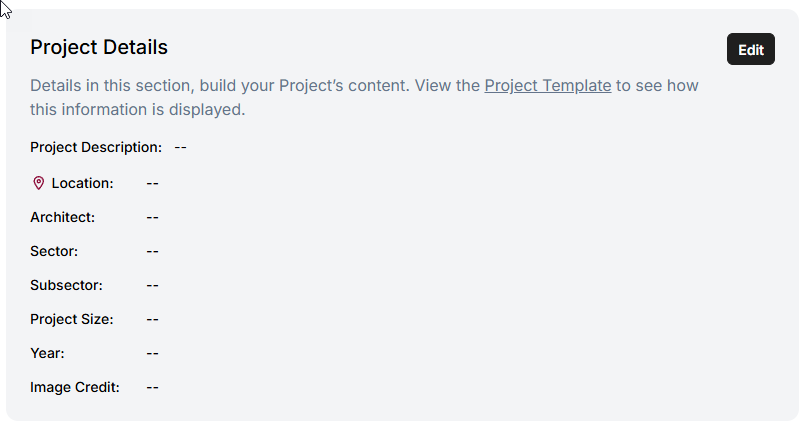
Project Description
Location
Architecture Firm: The primary firm for this project.
Architecture Firm Link: Add the primary firm URL.
Sector: Use the drop down to select the relevant industry sector.
Subsector: Use the drop down to select the relevant industry subsector.
Project Size: Enter the project size using the best available metric such as total area, number of units.
Year
Image Credit: Name of the photo owner or copyright holder.
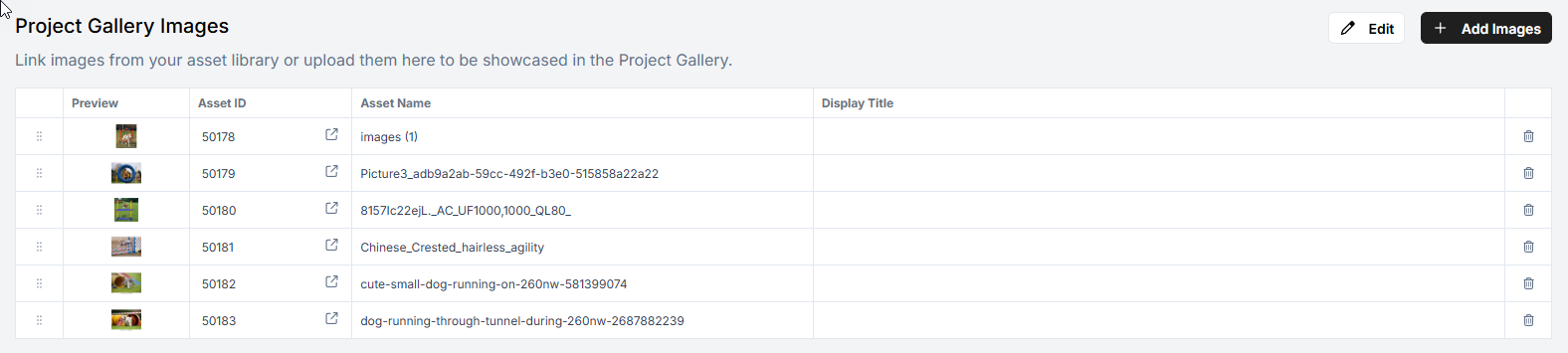
Project Gallery Images
In the Project Gallery Images section of the Project Builder, select Add Images at the top right of the section to link images from your asset library or upload them to be showcased in your Project Gallery.
Project Gallery Videos
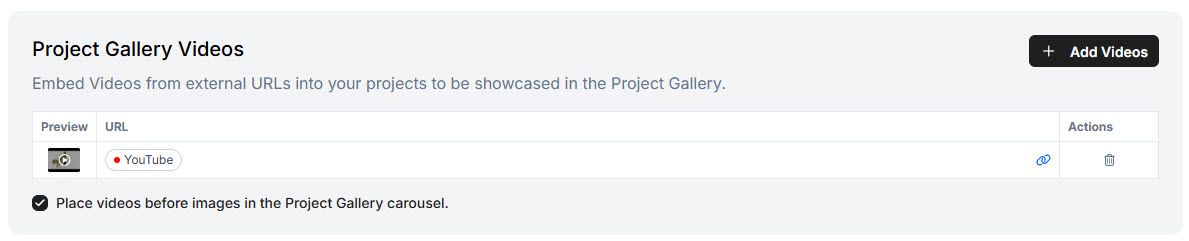
You can add embedded video links to a Project to display them alongside your image assets in the Project Preview gallery.
Adding Videos
Open a Project form.
Scroll to the Project Gallery Videos section.
Click Add Videos.
In the dialog, choose one of two tabs:
New Link — Enter a new video URL (e.g., YouTube or Vimeo). The system validates the URL via oEmbed.
Library — Browse and select from your saved Embed Link Library. Click a tile to preview; select to link.
The video appears in the Project Gallery Videos table.
Controlling Video Order in the Gallery
Check the "Place videos before images" checkbox to display embedded videos before image assets in the Project Preview carousel. Uncheck to display images first.
Viewing Videos in Project Preview
Open the Project Preview page to see embedded videos displayed in the gallery in the order you configured.
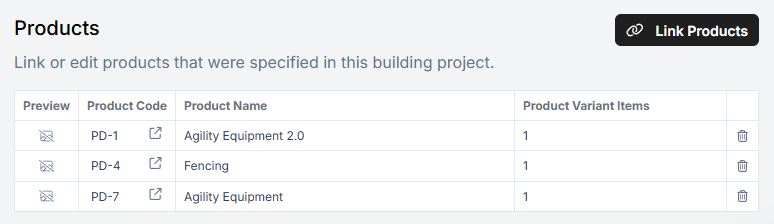
Link Product Families to your Projects
Link your Product Families to your projects by selecting Link Product Families and selecting the records to link.
Preview Your Project
Select Preview at the top right.
If your Project has been filled out, you will be able to see what the Project will look like for others. You can also share your project from here.
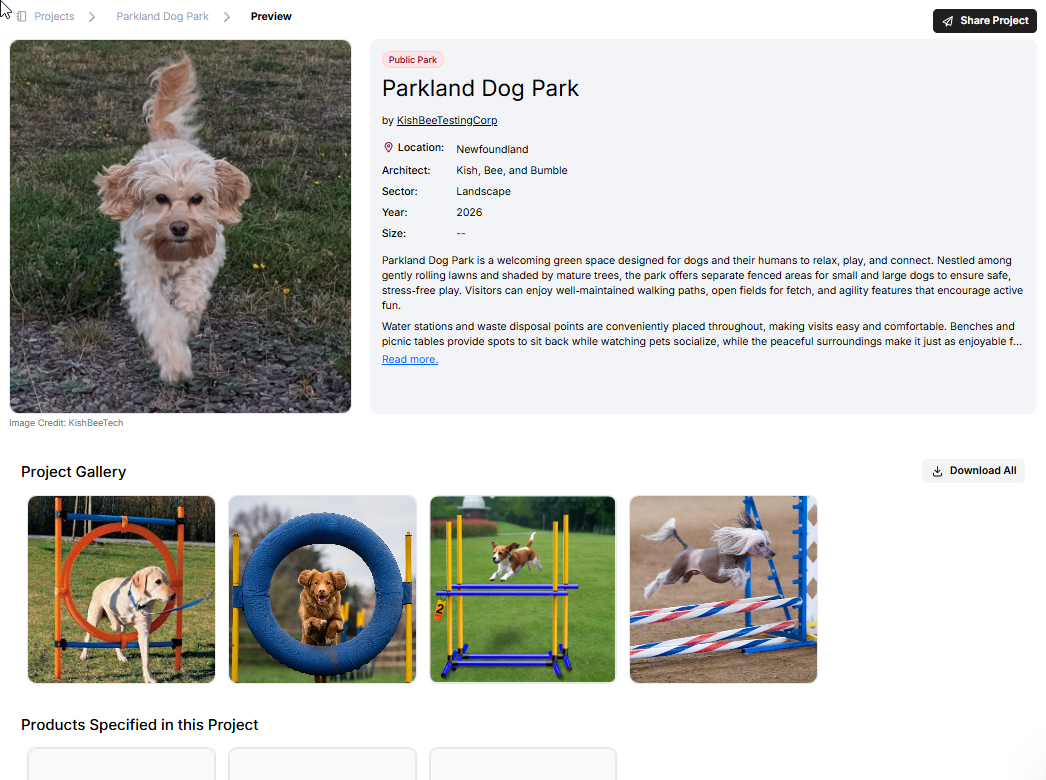
Downloads and Embed Links
Note: The Download All button is hidden when a project contains only embedded video links or no downloadable media files. When downloading a project that contains both file assets and embed links, the confirmation dialog will read: "You will be downloading a ZIP file containing all media files added to this project, excluding external links." Embedded video links are not included in the ZIP download.