Assigning a Specific Product Type
Learn how to categorize your products using Prodify's standardized product taxonomy.
Written By El
Last updated About 1 month ago
Specific Product Type (SPT) maps your products to a standardized taxonomy shared across CADdetails and Design Hub. Assigning an SPT is required for channel readiness and ensures your products are correctly categorized when published.
Roles: Editors and Admins can assign and update Specific Product Types. Viewer roles have read-only access.
What Is a Specific Product Type?
A Specific Product Type is a standardized classification drawn from a taxonomy of 700 product types used across CADdetails and Design Hub. Selecting the closest match to your product ensures it is discoverable and correctly categorized on publishing channels.
Where to Find It
The Specific Product Type column is visible in the Product Table. Products without an SPT display a red Not Assigned badge in that column.
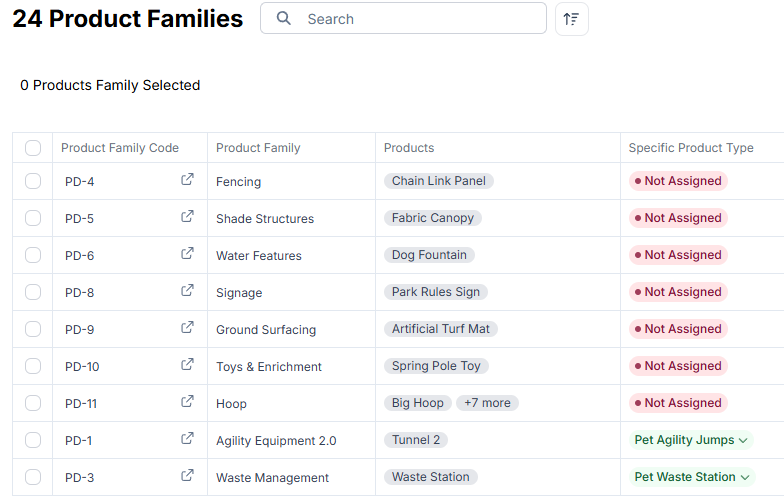
You can also assign an SPT from within an individual product family or product record, via the Product Type field in the detail view, or from the Edit panel on a product family.
Assigning a Specific Product Type
From the Product Table
Locate the product with a red Not Assigned badge in the Specific Product Type column.
Click the badge to open the Assign Specific Product Type dialog.
Tip: Use Batch Edit to assign an SPT to multiple products at once.
From a Product Family
Open the product family.
Click + Assign Product Type in the Specific Product Type field.
The Assign Specific Product Type dialog will open.
Assigning or changing an SPT automatically applies to every product in that family.
Using the Assign Specific Product Type Dialog
Type a keyword in the search bar. You can search by product name or synonyms (e.g., "acoustical tile", "fire door", or "curtain wall").
Review the results. Each result shows the product type name, its category path (e.g., Ceilings › Interior Finishes), and the number of available taxonomy paths.
Select the closest match using the radio button.
Click Next: Select Paths to proceed or Continue if only one option is available.
Note: The more specific your search term, the better your results. If more than 5 matches are found, a Refine search to see all prompt will appear — narrow your term to see the full list.
If no results appear for your search term, a Contact Support link is shown. Reach out to the support team to request a new product type be added to the taxonomy.
Specific Product Type on Products
The Products table includes a read-only Specific Product Type column that reflects the SPT assigned at the product family level.
Impact on Channel Readiness
Assigning an SPT is a requirement for CADdetails readiness only — it is not part of Design Hub's readiness requirements. Until it is assigned, the Readiness tab will flag it as outstanding under CADdetails Product Family and Product Requirements. Once assigned, it's marked as complete
You can view overall readiness coverage across your catalog under Settings → Channel Publishing.
CADdetails Readiness recalculates automatically whenever a product's SPT changes, updating the PIM table's CADdetails Readiness column and any form badges immediately.