Embed Link Library
Written By El
Last updated 3 months ago
The Embed Link Library is a centralized place to manage all your embedded video links in Prodify. From here you can add, view, edit, delete, and check the health of external video links (such as YouTube or Vimeo) before linking them to Product Families, Products, or Projects.
Roles: Editors and Admins can add, edit, delete, and run health checks. Viewer roles have read-only access.
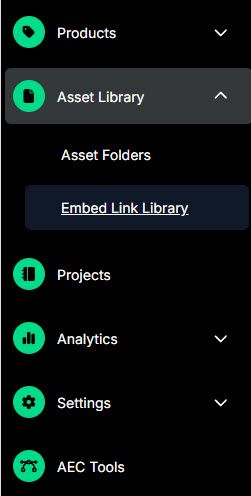
Navigating to the Embed Link Library
The Embed Link Library is accessible from the main navigation menu. Click Embed Link Library in the left-hand sidebar.
Adding an Embed Link
Click Add Link in the Embed Link Library.
Enter a valid video URL (e.g., a YouTube or Vimeo link) in the URL field.
Click Save. The system validates the URL via the oEmbed service.
If the URL is empty or not supported, an error displays: "This is not a valid link. Please try a new link."
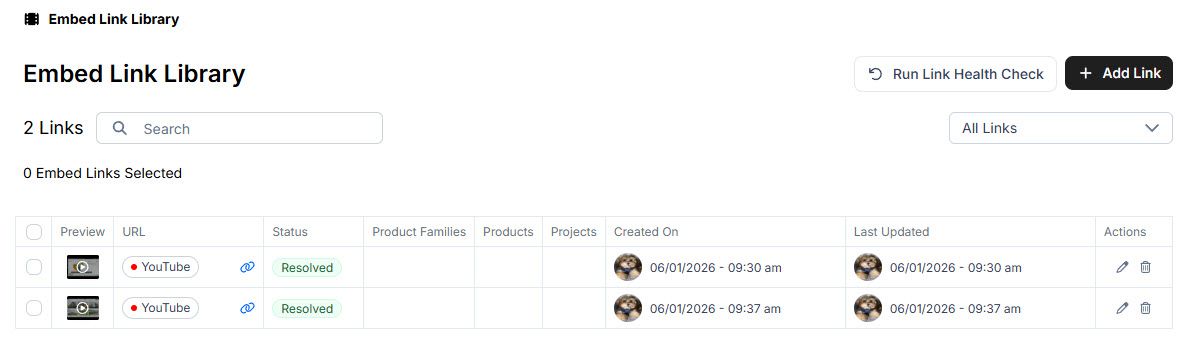
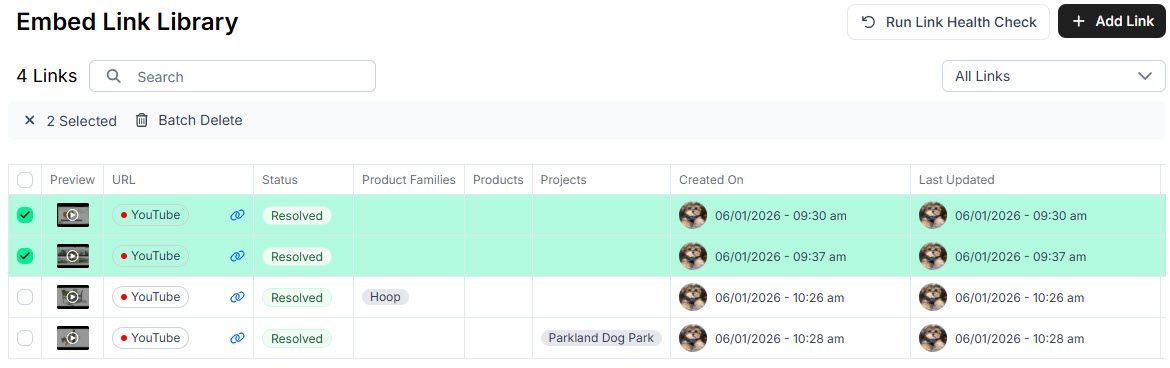
Once saved, the link appears in the DataTable with its thumbnail, status, and URL.
Viewing Embed Links
All embed links are displayed in a DataTable.
Each row shows:
Thumbnail — Click to open a preview modal with the embedded video playing inline.
Status — Whether the link is Resolved (healthy) or Stale (not working). Hover over a Stale status to see the error message.
URL — Click the link icon to open the URL in a new browser tab.
Product Families / Products / Projects — Shows which records are linked to this embed link. Click any item in these columns to open its detail modal.
Filtering Embed Links
Use the filter dropdown to narrow the table view:
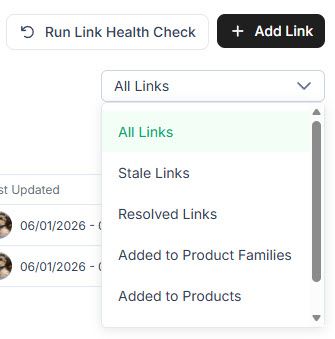
All Links — Show all embed links.
Stale Links — Show only links with a Stale status.
Resolved Links — Show only links with a Resolved status.
Added to Product Families — Show links associated with at least one Product Family.
Added to Products — Show links associated with at least one Product.
Added to Projects — Show links associated with at least one Project.
Running a Link Health Check
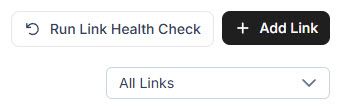
The Run Link Health Check button sends a request to all embed links for your company and updates the Status column with the result.
Resolved — The link is active and healthy.
Stale — The link is not working. Hover over the status to see the error message.
Note: A health check also runs automatically every day at 3:00 AM. The Run Link Health Check button is visible to Editor and Admin roles only.
Editing an Embed Link
Click the edit icon on the embed link row.
Update the URL in the dialog.
Click Save to apply the change.
Note: Edit is available to Editor and Admin roles only.
Deleting Embed Links
Single delete:
Click the delete icon on the embed link row.
Confirm the deletion in the dialog.
The link is removed from the library.
Batch delete:
Select multiple links using the checkboxes.
Click Batch Delete in the selection toolbar.
Confirm the deletion in the dialog.
All selected links are removed.
Note: Delete controls are not visible to Viewer roles.