Collections
Group your Product Families and Products into custom Collections for a more structured, tidy PIM.
Written By El
Last updated About 1 month ago
Finding Collections
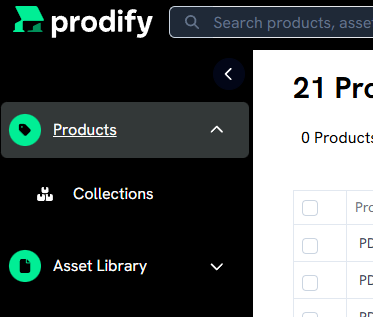
Navigate to Collections by accessing the dropdown menu under Products.
Creating a New Collection
Select “Create a new collection” at the top right.

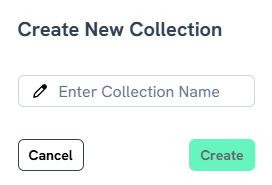
Enter the desired Collection name.
Your collection will now appear in the Collections table. Within the table you can also view with whom a collection has been shared, when it was created and last updated, and access actions including download, favorite, trash, share and duplicate.

Customizing Your Collection
Open your collection and customize the contents including a Collection image, description and tags.
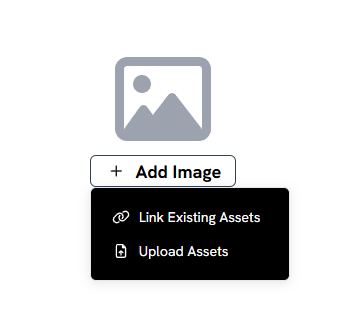
Select “Add Image” then link existing assets or upload a new image.
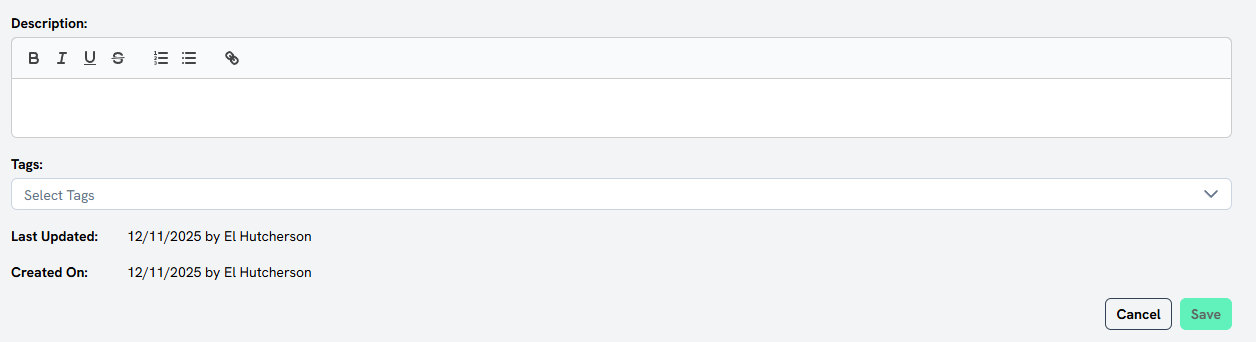
Add a description by selecting Edit to the right of your screen and add tags.
Link Product Families and Products to Your Collection
You can link existing Product Families to a Collection. Open a Collection and find the Product Families & Products section under the Collection Image.
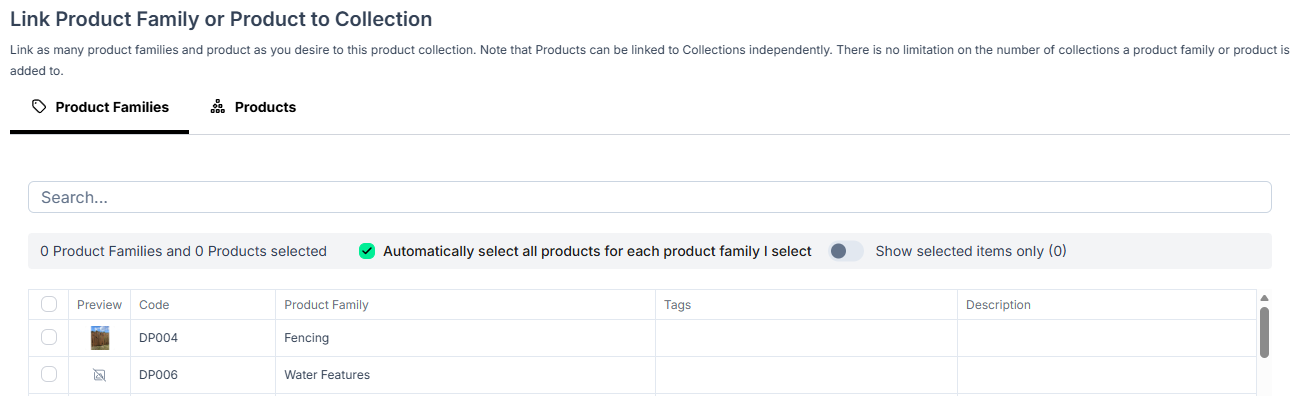
Select “Link Product Families & Products” to access a table of Product Families and Products. There is a tab for each: Product Families and Products. Refine the table using the toggles.
You have the option of automatically including Products when selecting Product Families by selecting the checkbox in the Product Family tab.

Sharing Collections
You can share a collection from the Collection page, or from the Collection table.
In a Collection page, you will find the Share option at the top right.
From the Collection table, you can select multiple selections for a bulk share, or use Actions within the table to share a single Collection at a time.